Patient Appointment Booking Instruction
1.
GoAccessing tothe "Schedule"
→Section
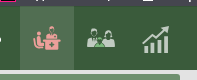
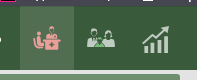
Action: Click the first icon in the top-left menu (depicting a doctor and a patient).
Goal: To open the Appointment log.
2. Finding a Suitable Slot (Filtering)
Use the filter panel at the top to find available time:
Calendar: Enter a specific date (e.g., 29.05.2026) or a date range.
Number Type: Select the category: Initially, Repeatedly, or Stationary.
Admission Status: Filter by status (e.g., Initially, Repeated, Paid, A confirmed record).
Doctor and Speciality Search:
Enter the physician's name in the Doctor field.
Specify the field in the Speciality field.
Services and Address: Use these fields to narrow down the clinic location and specific service.
Availability: Click the Available button to filter out busy slots.

3. Completing the Booking
Selecting a Slot: Double-click
athe desired slot
→in the list.

Filling Details in the "Record" Window:
Patient: Start typing the name. If empty, the system displays a red warning: Patient not specified.
FillPhone dataNumber: andEnter clickthe "contact information.
Admission Status: Confirm the visit type from the dropdown list.

Finalizing: Click the Save and close".close button at the bottom.