
Patient Search Instruction (Card Index)
1. Accessing the "Card Index" Section
- Action: Click the second icon in the top-left menu (depicting three silhouettes).
- Goal: To open the patient database (Card index).

2. Fast Search and Smart Suggestions
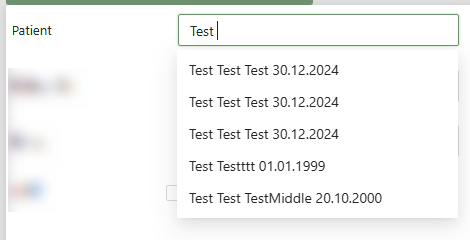
Use the primary filter row for quick identification. The Patient field features an intelligent suggestion tool:
- Smart Matching (Patient): As you type a name, a dropdown list appears with potential matches, showing the full name and date of birth for each person.
- Benefit: This allows for immediate identification of the correct patient, even among those with similar names.
- Action: Selecting a patient from this list automatically populates the search criteria.
- Other Identifiers: You can also search by № Outpat. card or Unique ID.

3. Detailed Search (Advanced Filters)
To expand the full list of criteria, click the blue arrow next to the Clear button.
Advanced Filter Fields:
- Personal Data: Date of Birth, Contact, Place of work.
- Insurance: Policy, VHI.
- Statuses: Registered, Died, Active, Registered based on diagnosis.
"Upcoming Reception" Section: Find patients based on scheduled visits (Date, Time, Speciality, Doctor, Comments).

4. Executing the Search and Opening the Record
- Action: Click the green Find button after selecting a patient from suggestions or filling in filters.
- Result: Double-click the patient's row in the search results to open their electronic medical record (EMR).

No comments to display
No comments to display