
Patient Search Instruction (Card Index)
1. Accessing the "Card Index" Section
2. Fast Search
For a quick search, use the primary filter row at the top:
3. Detailed Search (Advanced Filters)
To expand the full list of search criteria, click the blue arrow located next to the Clear button (the Clear button resets all filters).
Advanced Filter Fields:
"Upcoming Reception" Section:
Search for patients based on their scheduled appointments:
4. Executing the Search and Opening the Record
EN: Patient Search Instruction (Card Index)
1. Accessing the "Card Index" Section
- Action: Click the second icon in the top-left menu (depicting three silhouettes).
- Goal: To open the patient database (Card index).

2. Fast Search and Smart Suggestions
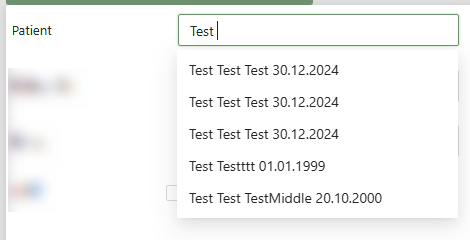
Use the primary filter row for quick identification. The Patient field features an intelligent suggestion tool:
- Smart Matching (Patient): As you type a name, a dropdown list appears with potential matches, showing the full name and date of birth for each person.
- Benefit: This allows for immediate identification of the correct patient, even among those with similar names.
- Action: Selecting a patient from this list automatically populates the search criteria.
- Other Identifiers: You can also search by № Outpat. card or Unique ID.

3. Detailed Search (Advanced Filters)
To expand the full list of criteria, click the blue arrow next to the Clear button.
Advanced Filter Fields:
- Personal Data: Date of Birth, Contact, Place of work.
- Insurance: Policy, VHI.
- Statuses: Registered, Died, Active, Registered based on diagnosis.
"Upcoming Reception" Section: Find patients based on scheduled visits (Date, Time, Speciality, Doctor, Comments).

4. Executing the Search and Opening the Record
- Action: Click the green Find button after selecting a patient from suggestions or filling in filters.
- Result: Double-click the patient's row in the search results to open their electronic medical record (EMR).
