
Drug Prescription Workflow: Window Forms Description
The process of adding a medication involves two primary interface windows: the drug selection catalog and the detailed administration setup form.
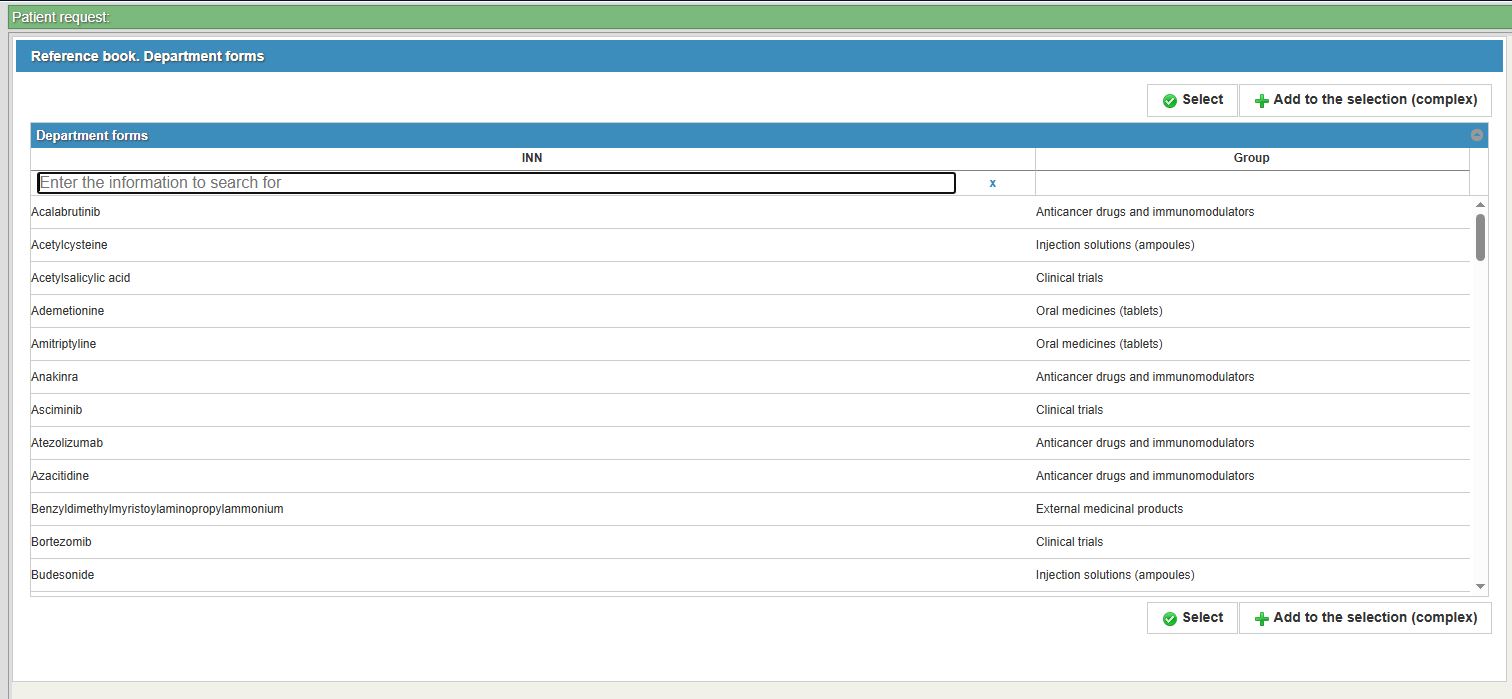
1. Drug Selection: "Reference book. Department forms"
After clicking the + Add button on the main toolbar (Screen Form Structure (структурное описание главной страницы листа назначений), the system opens the drug selection window.
- Functional Elements:
- Search Field: A text box labeled "Enter the information to search for" to filter the catalog by name.
- Selection Table: Displays drugs with columns for INN (International Nonproprietary Name) and Group (e.g., "Anticancer drugs and immunomodulators", "Injection solutions").
- Action Buttons:
Select: Confirms the choice of a single drug.Add to the selection (complex): Allows the physician to pick multiple items for a combined therapeutic regimen.
2. Administration Setup: "Choosing the time of reception"
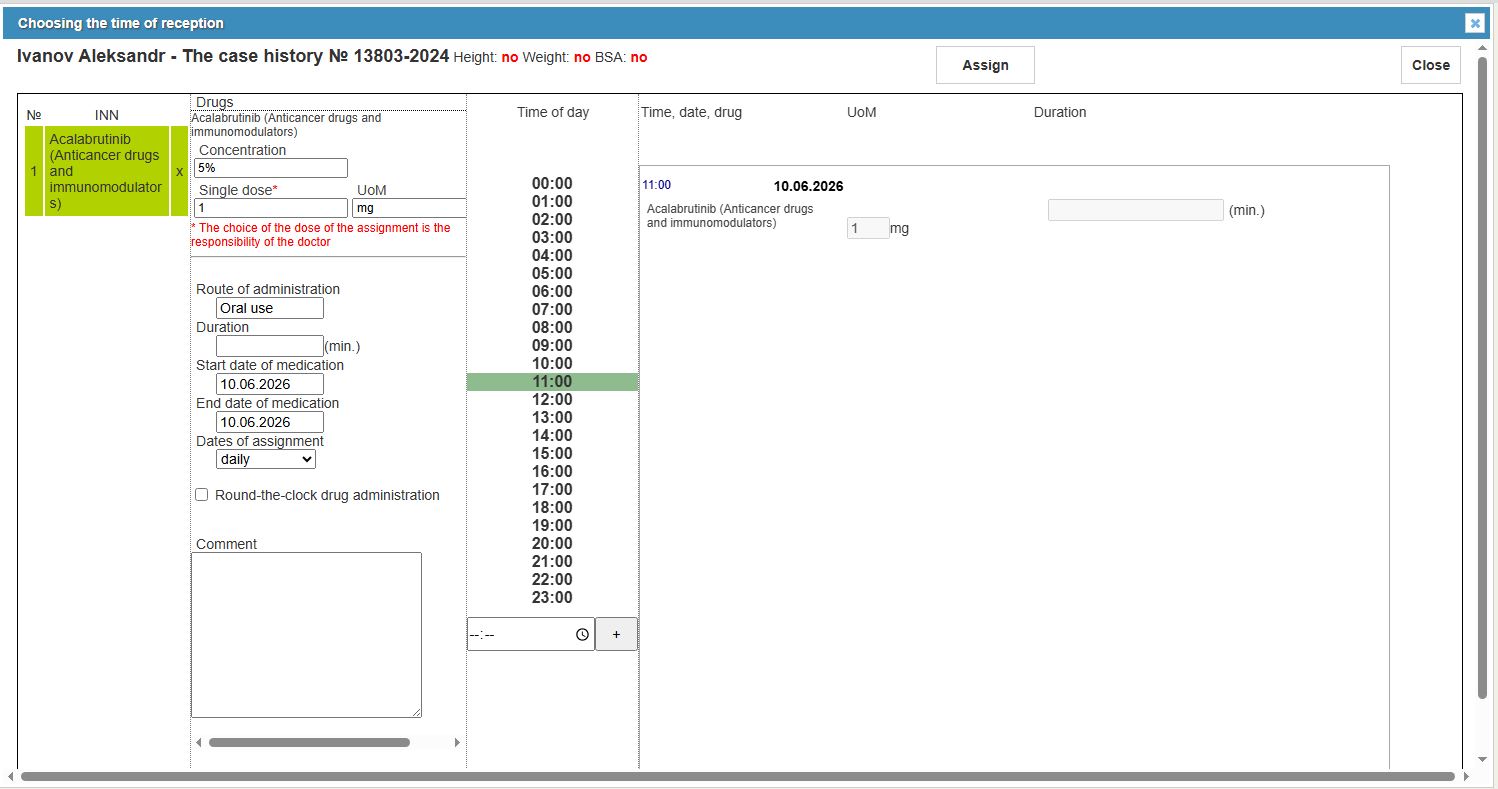
Once a drug is selected, the system opens a detailed configuration form.
- Patient Identification Header: Displays the patient's name, Case history number, and vital anthropometric data: Height, Weight, and BSA (Body Surface Area).
- Drug Parameters (Left Panel):
- Dosage: Fields for Concentration, Single dose* (marked as mandatory), and UoM (Unit of Measure, e.g., mg).
- System Disclaimer: A red warning states: "The choice of the dose of the assignment is the responsibility of the doctor".
- Administration: Dropdown for Route of administration (e.g., Oral use) and a field for Duration (min.).
- Period: Selectors for Start date of medication and End date of medication.
- Multiplicity: The Dates of assignment dropdown defines the frequency (e.g., "daily").
- Comment: A text area for additional physician instructions.
- Scheduling (Center Panel):
- Time of Day: A vertical list of hours (00:00 to 23:00). Selecting a time highlights it in green.
- The right-hand summary panel displays the specific Time, date, and drug details for the planned dose.
- Action Buttons:
Assign: Finalizes the prescription and adds it to the patient's record.Close: Cancels the operation without saving.
3. Final Result in the Assignments List
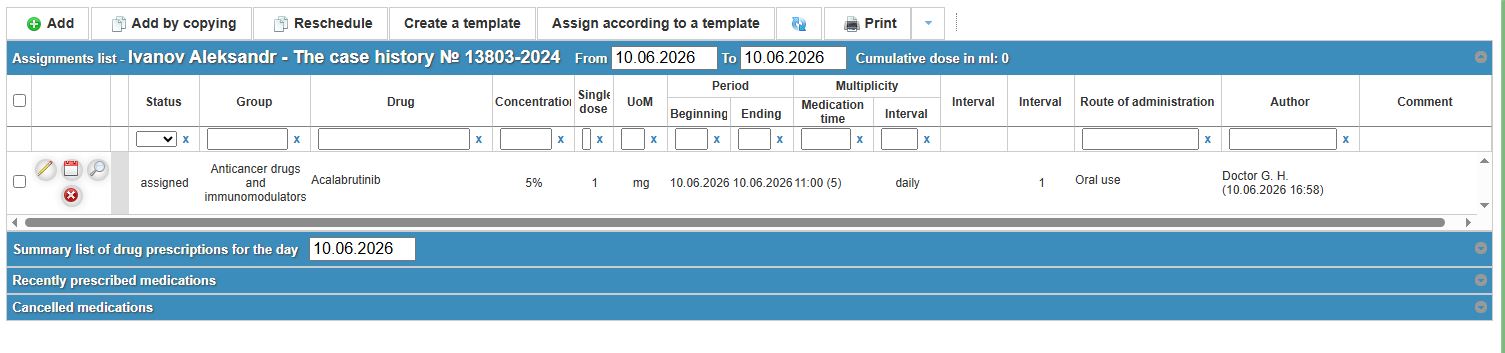
Upon clicking Assign, the medication appears in the central table of the Assignments list.
- Status: The entry is marked as "assigned".
- Record Details: The row displays the drug name, dosage, route, and the Author (e.g., "Doctor G. H.") with a precise timestamp of the assignment.
- Organization: The prescription is automatically categorized under the appropriate summary block (e.g., "Summary list of drug prescriptions for the day").
No comments to display
No comments to display